
Linux Installation Guide#
This guide describes how to download, verify, install and encrypt the Dash Core wallet for Linux. The guide is written for Ubuntu 20.04 LTS, but the steps should be similar for other Linux distributions.
대시 코어 지갑 다운로드 하기#
Visit https://www.dash.org/downloads/ to download the latest Dash Core wallet. In most cases, the website will properly detect which version you need. Click the Dash Core button to download the package directly.

웹사이트는 당신의 시스템에 맞는 적절한 지갑을 감지합니다.#
If detection does not work, you will need to manually choose your operating system and whether you need an x64 (64 bit x86) or ARM version. If you are unsure about your version of Linux, you can check in Ubuntu using the Terminal:
uname -m
If the response is x86_64, download Dash Core x64. If the response is
aarch64, download Dash Core ARM. Once you know which version you need,
download the Dash Core TGZ file to your computer from
https://www.dash.org/downloads/ and save it to your Downloads folder.
참고
Since Dash Core 18.0, downloads are not available for 32-bit Linux installations.
대시 코어 검증하기#
This step is optional, but recommended to verify the authenticity of the file you downloaded. This is done by checking its detached signature against the public key published by the Dash Core development team. To download the detached signature, click the Signature button on the wallet download page and save it to the same folder as the downloaded binary.
All releases of Dash since 0.16.0 are signed using GPG with the following key:
Pasta (pasta) with the key
5252 7BED ABE8 7984, verifiable on Keybase (download)
Open a terminal, import the key and verify the authenticity of your download as follows:
curl https://keybase.io/pasta/pgp_keys.asc | gpg --import
gpg --verify dashcore-23.1.7-x86_64-linux-gnu.tar.gz.asc
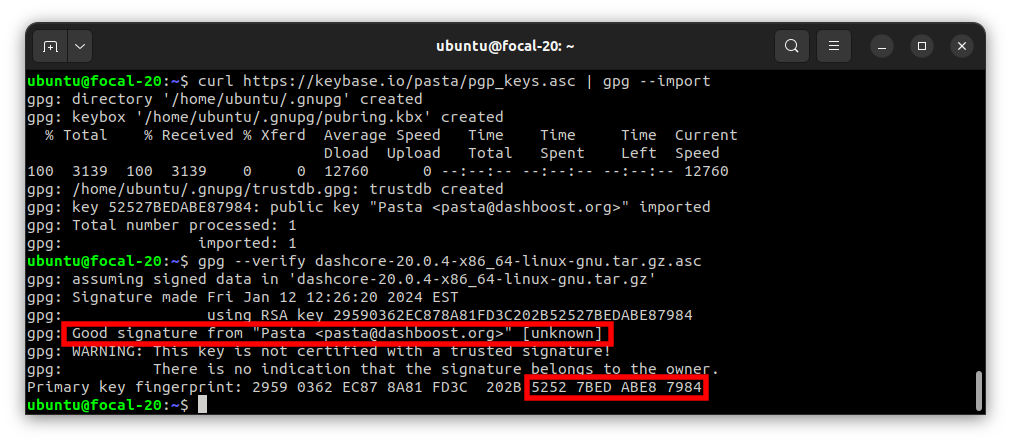
Downloading the PGP key and verifying the signed binary#
If you see the message Good signature from ..., then you have an
authentic copy of Dash Core for Linux.
참고
If you have your own key configured, you can eliminate warnings from the verification output by signing the imported key before verifying:
gpg --quick-lsign-key "29590362EC878A81FD3C202B52527BEDABE87984"
gpg --verify dashcore-23.1.7-x86_64-linux-gnu.tar.gz.asc
Extracting Dash Core#
Dash Core for Linux is distributed as a compressed archive and not an installer. This is because this same archive also contains other files built for running a masternode on a server, for example. In this guide, we will extract the executable file with a graphical user interface (GUI) designed for use by end users as a wallet.
Extract Dash Core as follows:
tar xzf dashcore-23.1.7-x86_64-linux-gnu.tar.gz
This will create a folder named dashcore-23.1.7 in the current working
directory. We will now install the executable binaries to
/usr/local/bin using the install command:
sudo install -m 0755 -o root -g root -t /usr/local/bin dashcore-23.1.7/bin/*
참고
In order to run Dash Core, you will need several libraries that should be available in all major, recently-released Linux distributions. If you receive an error message that indicates files are missing when starting Dash Core, search your distribution’s package database for the missing file and install the package containing that file.
On recent versions of Ubuntu, you may need to install libxcb-xinerama0 by running:
sudo apt install libxcb-xinerama0
Start Dash Core from the terminal with the following command:
dash-qt
The first time the program is launched, you will be offered a choice of where you want to store your blockchain and wallet data. Choose a location with enough free space, as the blockchain can reach 45GB+ in size. It is recommended to use the default data folder if possible.
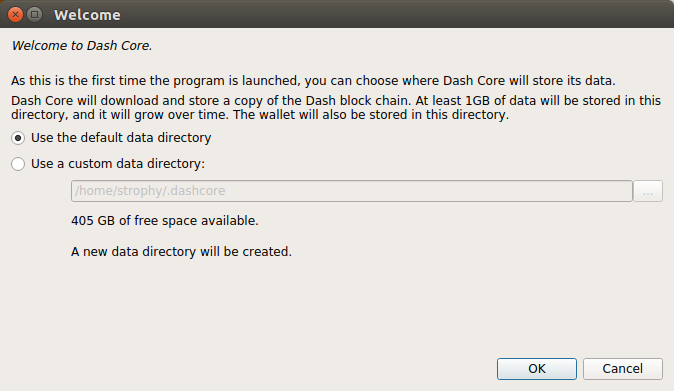
대시 코어 데이터 폴더 선택하기#
이후 대시 코어가 실행될 것입니다. 첫 실행 시에는 다소 긴 시간이 소요되는데, 이는 대시 코어가 당신의 지갑을 안전하게 보호하기 위하여 암호화된 데이터를 생성하기 때문입니다.
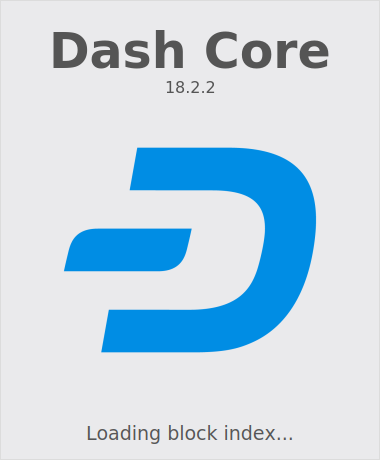
대시 코어 시작하기#
대시 코어와 대시 네트워크 동기화하기#
대시 코어가 성공적으로 설치 및 시작되는 경우, 당신은 지갑 개요 화면을 보게 될 것입니다. 또한 당신의 지갑이 동기화 되지 않은 상태임을 확인할 수 있으며, 또한 창의 하단 상태 바에서 동기화 진행 상황을 보실 수 있습니다.
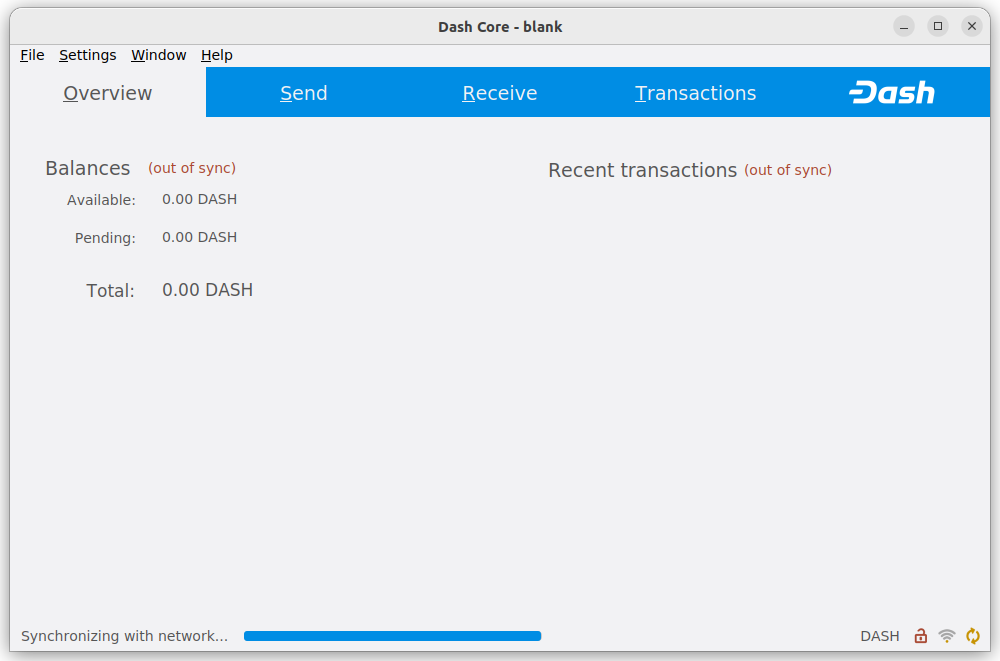
대시 코어가 대시 네트워크와 동기화를 진행하고 있습니다.#
During this process, Dash Core will download a full copy of the Dash blockchain from other nodes to your device. Depending on your internet connection, this may take a long time. If you see the message “No block source available”, check your internet connection. When synchronization is complete, you will see a small green tick in the lower right corner.
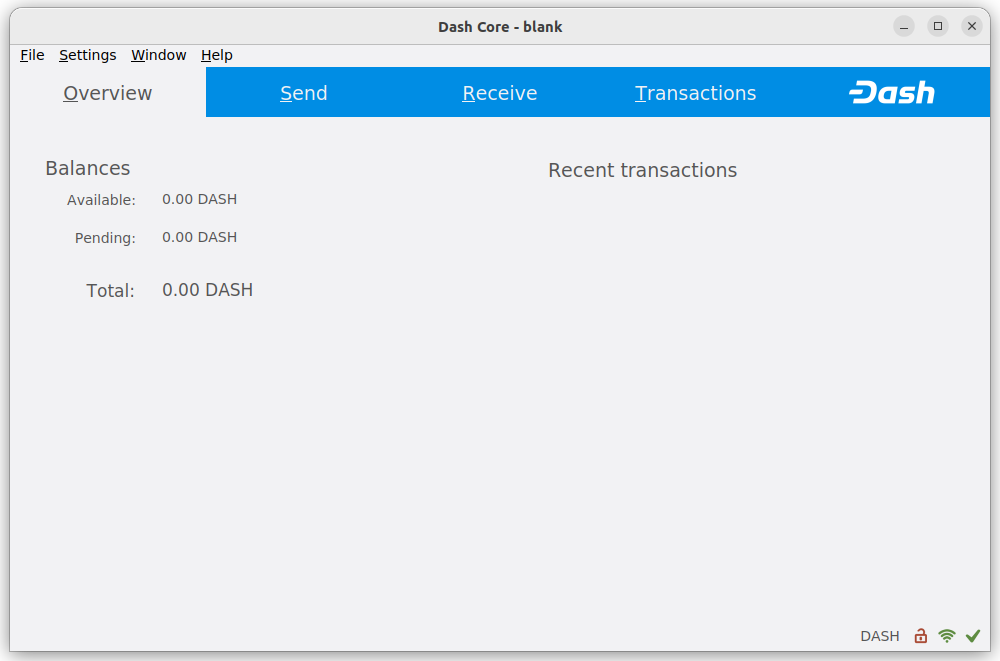
대시 코어 동기화가 완료되었습니다.#
You can now create a wallet to send and receive funds.
Setting up a desktop entry#
You can set up an XDG Desktop Entry
in order to be able to launch Dash Core from your KDE or Gnome desktop
environment. To do so, create a file named
~/.local/share/applications/dash.desktop and add the following
content:
[Desktop Entry]
Version=1.5
Name=Dash Core
Comment=Dash Core is used to interact with the Dash blockchain
Exec=/usr/local/bin/dash-qt
Icon=dash-icon
Terminal=false
Type=Application
Ensure the file is executable:
chmod +x ~/.local/share/applications/dash.desktop
An appropriate icon can optionally be downloaded from the Dash Brand Guidelines page:
wget https://media.dash.org/wp-content/uploads/dash-d-rounded-square-250.png
xdg-icon-resource install --size 256 dash-d-rounded-square-250.png dash-icon
Creating your Dash Wallet#
Added in version v20.1.0: HD wallets are now created by default.
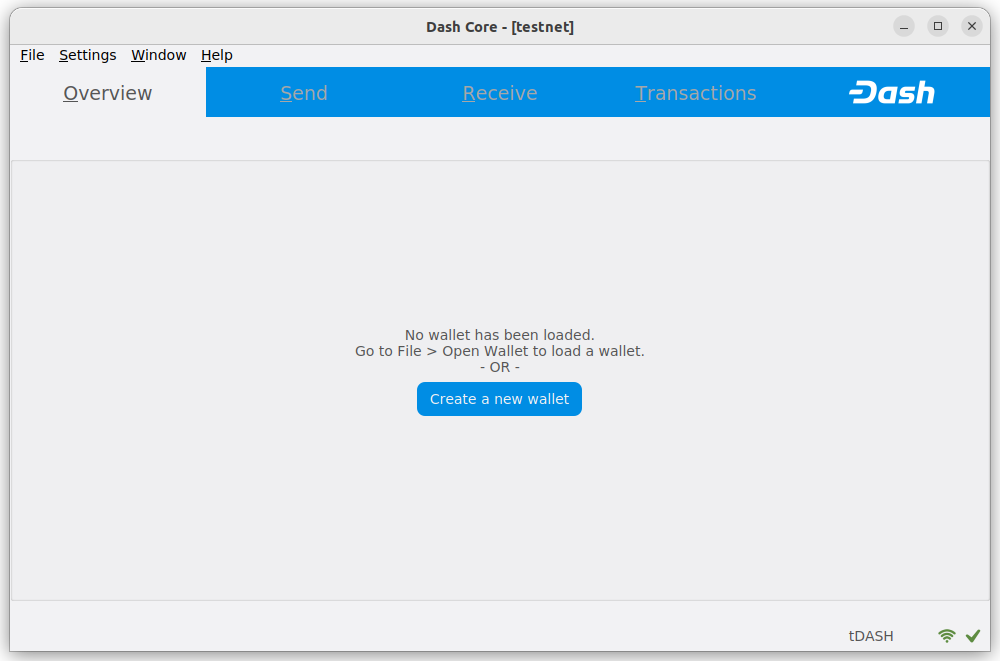
If no wallet files are loaded, you will get this prompt in the Overview tab. To create a wallet, click the Create a new wallet button or click File -> Create Wallet. HD wallets are created by default. See the advanced topics section for information about HD wallets.
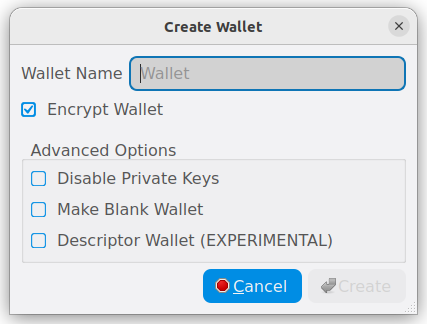
You will be prompted to create a new wallet with a custom wallet name. By default, your wallet will be encrypted. You may choose to uncheck the box and encrypt the wallet later. We have included instructions on how to encrypt your wallet in the following section.
Setting your password#
If you do choose to encrypt now, you will be asked to enter and verify a password.
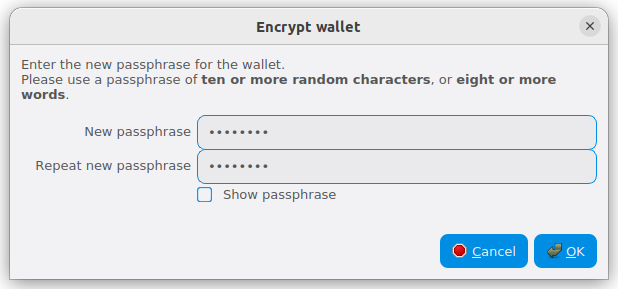
암호문을 입력합니다.#
Following that, you will get a standard warning. Click Yes to continue.
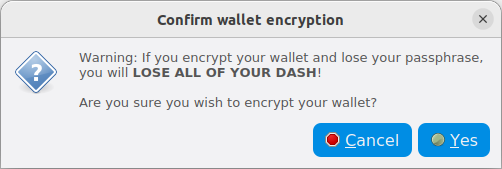
당신이 지갑을 암호화하고 싶은 것이 맞는지 확인합니다.#
Backing up your mnemonic#
Dash Core will display your mnemonic phrase (also called a recovery phrase) for all wallets (encrypted or not). This phrase can be used to restore your wallet if you lose access to your device.
경고
CRITICAL: If you lose your mnemonic seed phrase, you will permanently lose access to your wallet and all funds. Write it down on paper (not digitally) and store it in a safe, secure location. Never share your mnemonic with anyone.
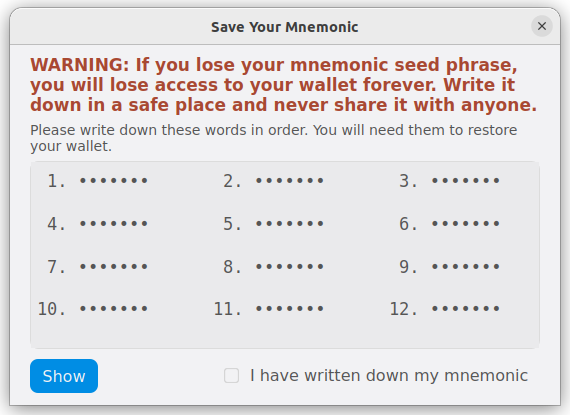
Mnemonic phrase backup prompt#
Click the Show button to reveal your mnemonic phrase. Then, write down all the words in order and check the “I have written down my mnemonic” checkbox to continue.
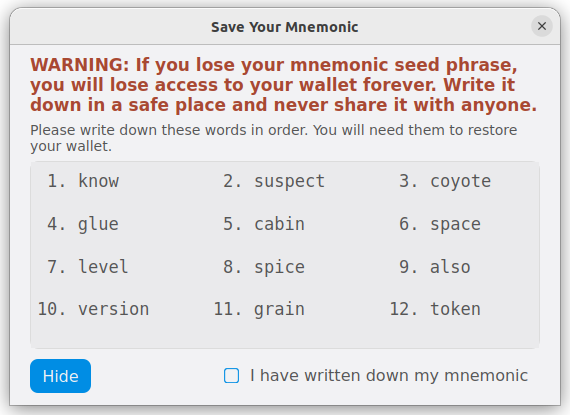
Revealing the mnemonic phrase#
Dash Core will then ask you to verify that you correctly saved the phrase by entering specific words from your mnemonic. Enter the requested words to confirm you have properly saved your mnemonic phrase.
As you enter each word correctly, a green checkmark will appear beside it. Once you have successfully verified your mnemonic, click Continue to complete the wallet creation process.
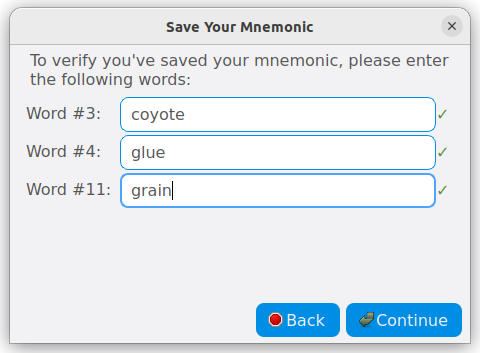
Mnemonic verification#
참고
For more information about HD wallets and how to view or restore your mnemonic phrase later, see the advanced topics section.
The following section will detail the steps you need to follow if you choose to encrypt your Dash wallet later.
당신의 대시 지갑 암호화하기#
To encrypt your wallet, click Settings > Encrypt wallet.
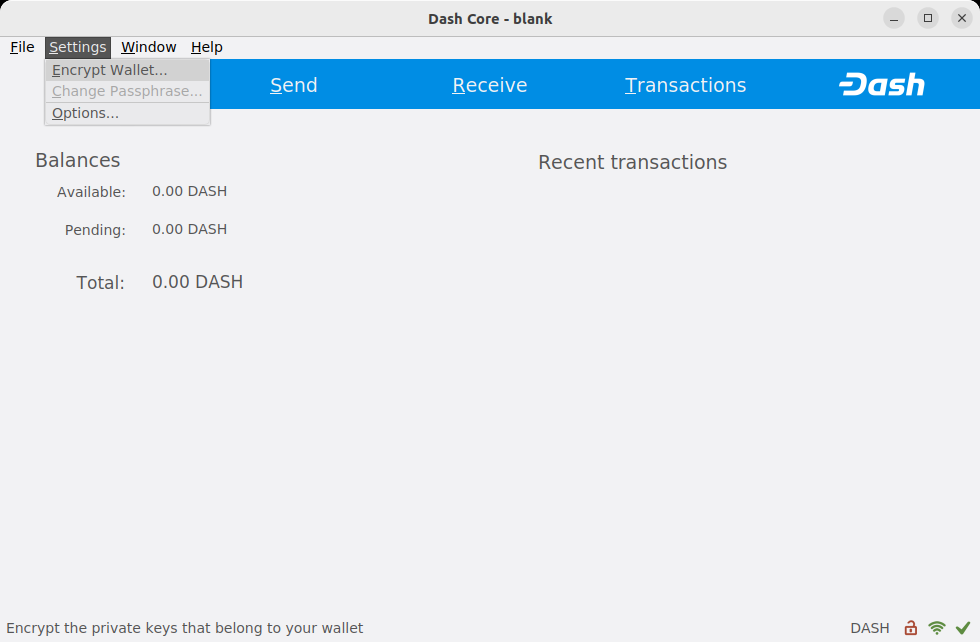
대시 지갑을 암호문으로 암호화하고 있습니다.#
암호문을 입력하고 확인하십시오.
Entering a password#
당신이 지갑을 암호화하고 싶은 것이 맞는지 확인합니다.#
When the encryption process is complete, you will see a warning that past backups of your wallet will no longer be usable, and be asked to shut down Dash Core. When you restart Dash Core, you will see a small green lock in the lower right corner.
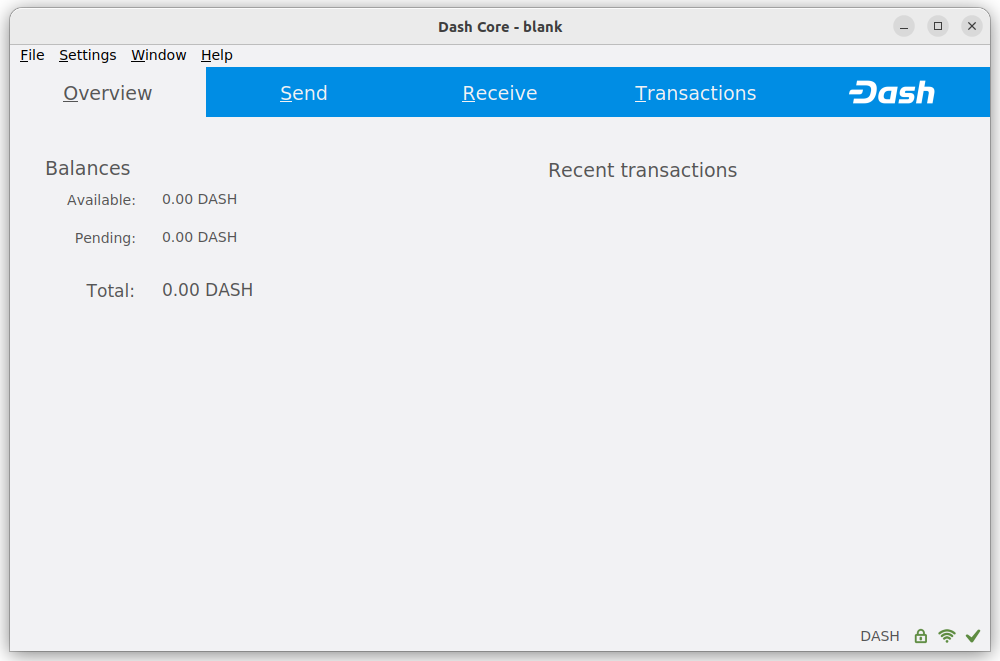
대시 코어 지갑이 완전히 암호화되고 동기화되었습니다.#