Testnet Setup#
Setting up a masternode with support for evo services requires a basic understanding of Linux and blockchain technology, as well as an ability to follow instructions closely. It also requires regular maintenance and careful security, particularly if you are not storing your Dash on a hardware wallet. There are some decisions to be made along the way, and optional extra steps to take for increased security.
Có các dịch vụ lưu trữ masternode nếu bạn thích việc uỷ nhiệm việc vận hành hàng ngày masternode của bạn cho những nhà vận hành chuyên nghiệp. Khi sử dụng dịch vụ lưu trữ, bạn vẫn giữ toàn quyền kiểm soát 1000 Dash đặt cọc và trả mức thoả thuận tương ứng với phần trăm của phần thưởng cho người vận hành. Bạn cũng có thể uỷ quyền bỏ phiếu cho một người đại diện, xem trong tài liệu về quản trị để biết thêm thông tin.
Trước khi bạn bắt đầu#
This guide assumes you are setting up a single testnet masternode for the first time. If you are updating a masternode, see here instead. You will need:
1000 Dash
Một ví để chứa Dash của bạn, tốt nhất là dùng một ví phần cứng, mặc dù ví Dash Core cũng có thể giúp bạn
Một máy chủ Linux, một máy chủ ảo (VPS) thì hay hơn
For information about hosted masternodes, see the documentation listed below:
Thông tin cho người dùng hoặc dùng dịch vụ lưu trữ masternode
:ref:`Thông tin dành cho người vận hành dịch vụ lưu trữ masternode <operator-transactions>
This documentation describes the commands as if they were entered in the
Dash Core GUI by opening the console from Window > Console, but the
same result can be achieved on a masternode by entering the same
commands and adding the prefix ~/.dashcore/dash-cli to each command.
Server configuration#
Proper server configuration is essential to successful masternode operation for both security and performance reasons. Refer to the Server configuration page for details on preparing your server to host a masternode.
Gửi khoản đặt cọc#
A Dash address with a single unspent transaction output (UTXO) of exactly 1000 DASH is required to operate a masternode. Once it has been sent, various keys regarding the transaction must be extracted for later entry in a configuration file and registration transaction as proof to write the configuration to the blockchain so the masternode can be included in the deterministic list. A masternode can be registered from a hardware wallet or the official Dash Core wallet, although a hardware wallet is highly recommended to enhance security and protect yourself against hacking. This guide will describe the steps for both hardware wallets and Dash Core.
Option 1: Holding collateral in a hardware wallet#
Set up your Trezor using the Trezor wallet at https://wallet.trezor.io/ and send a test transaction to verify that it is working properly. For help on this, see this guide - you may also choose to (carefully!) add a passphrase to your Trezor to further protect your collateral. Create a new account in your Trezor wallet by clicking Add account. Then click the Receive tab and send exactly 1000 DASH to the address displayed. If you are setting up multiple masternodes, send 1000 DASH to consecutive addresses within the same new account. You should see the transaction as soon as the first confirmation arrives, usually within a few minutes.
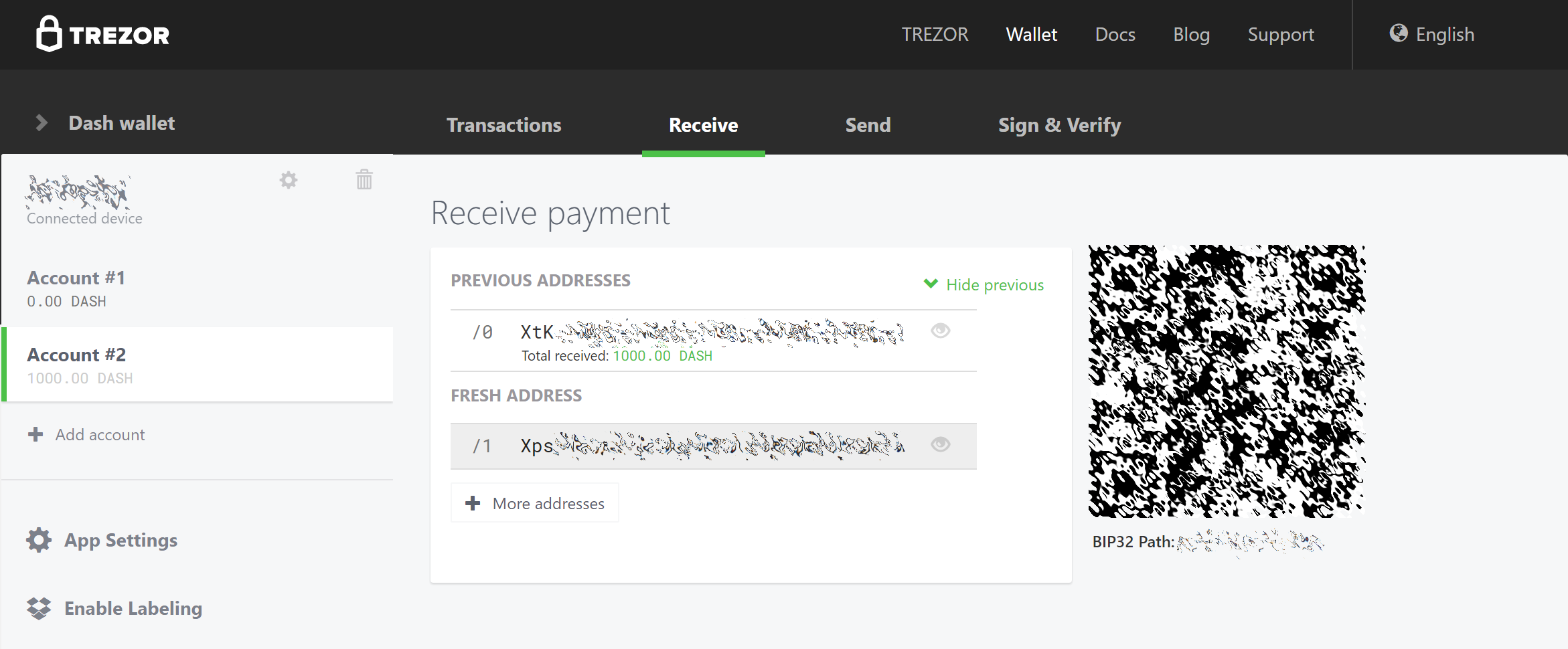
Trang Wallet Receive của Trezor hiển thị đã nhận được giao dịch đặt cọc 1000 DASH#
Once the transaction appears, click the QR code on the right to view the transaction on the blockchain. Keep this window open as we complete the following steps, since we will soon need to confirm that 15 confirmations exist, as shown in the following screenshot.
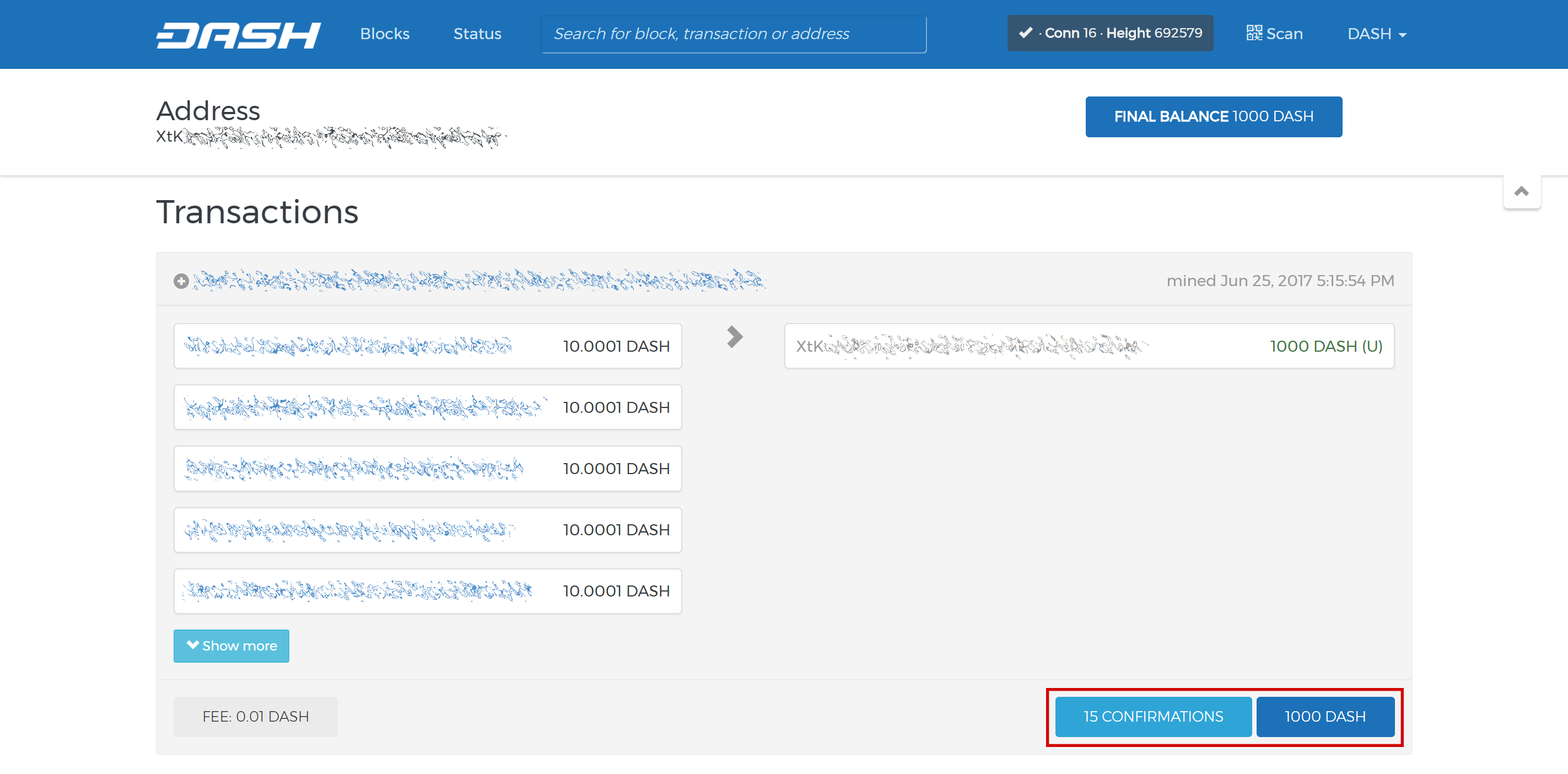
Trình khám phá blockchain hiển thị 15 xác thực cho giao dịch đặt cọc#
While we are waiting for 15 confirmations, download the latest version of the Dash Masternode Tool (DMT) from the GitHub releases page here. Unzip and run the file. The following window appears.
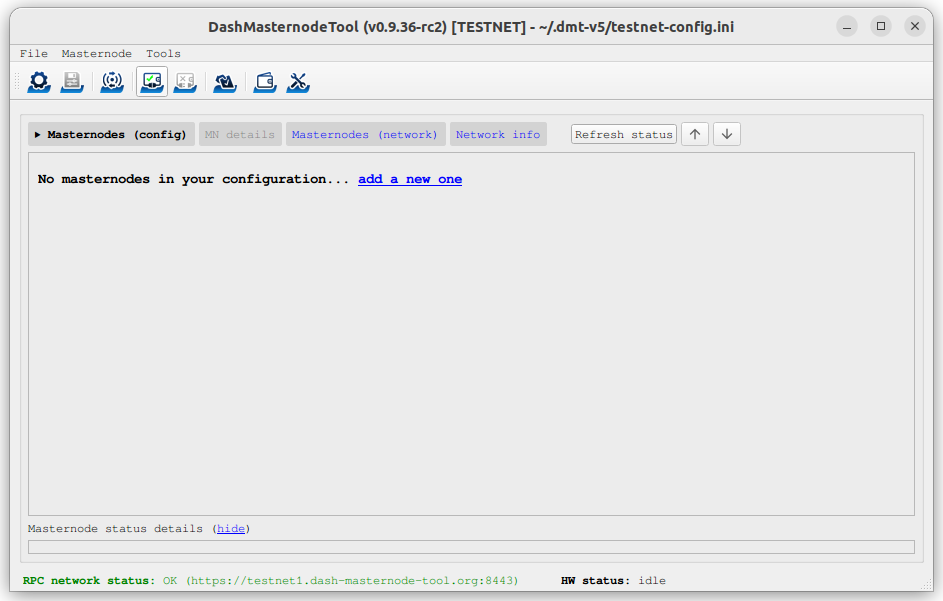
Màn hình khởi động của Dash Masternode Tool#
Click the third button from the left Check Dash Network Connection in the top left corner of the main window to verify that the connection is working. Then connect your Trezor device and click the next button Test Hardware Wallet Connection to verify the Trezor connection is working.
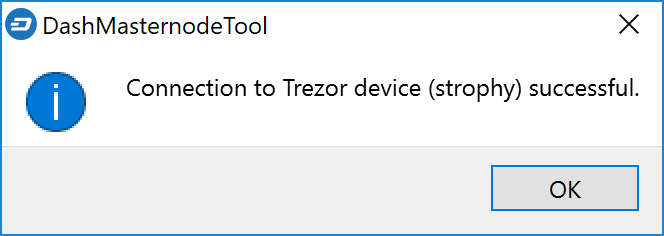
Dash Masternode Tool xác nhận kết nối thành công#
Bây giờ chúng ta sẽ sử dụng DMT để nhập vào một số thông tin căn bản về masternode và trích mã giao dịch. Thực hiện chuỗi các bước sau đây như trong ảnh chụp màn hình này:
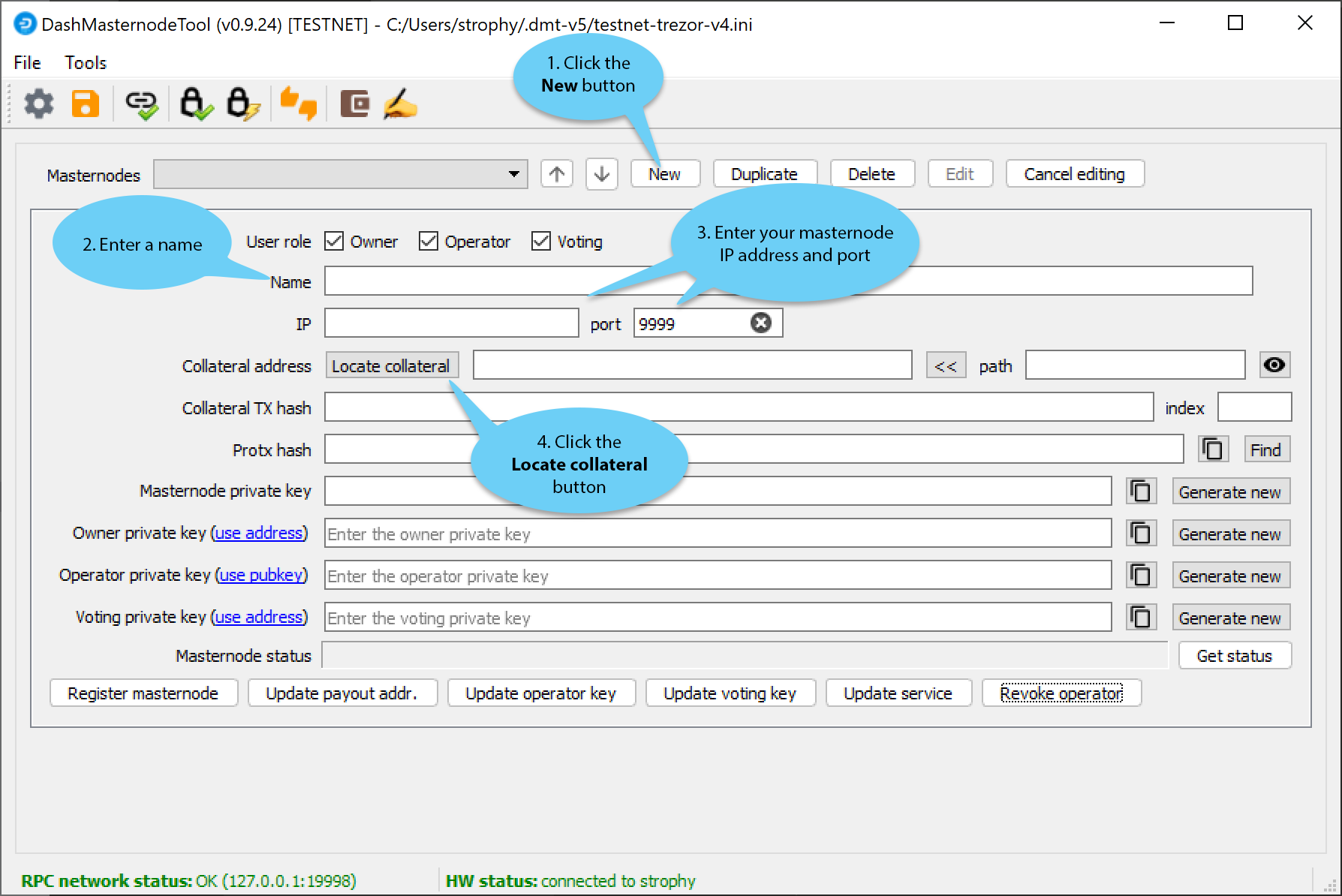
Các bước cấu hình Dash Masternode Tool#
Bấm nút New.
Nhập tên cho masternode của bạn. Bạn có thể dùng luôn tên máy chủ mà bạn xác định cho VPS ở trên.
Enter the IP address of your masternode. This was given to you by the VPS provider when you set up the server. Then enter the TCP port number. This should be 19999.
Click Locate collateral to view unused collateral funding transactions available on the connected hardware wallet. Select the address to which you sent 1000 Dash and click Apply. The Collateral address, path, Collateral TX hash and index fields should be filled automatically.
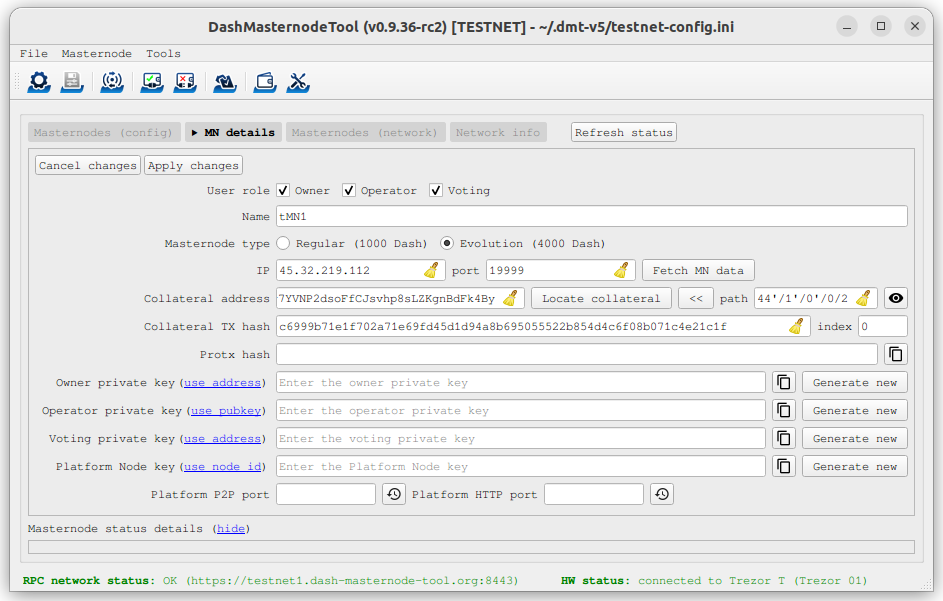
Dash Masternode Tool với cấu hình masternode#
Leave DMT open and continue with the next step: installing Dash Core on your VPS.
Option 2: Holding collateral in Dash Core wallet#
Mở ví Dash Core và đợi cho nó đồng bộ với mạng lưới. Nó sẽ nhìn như thế này khi đã sẵn sàng:
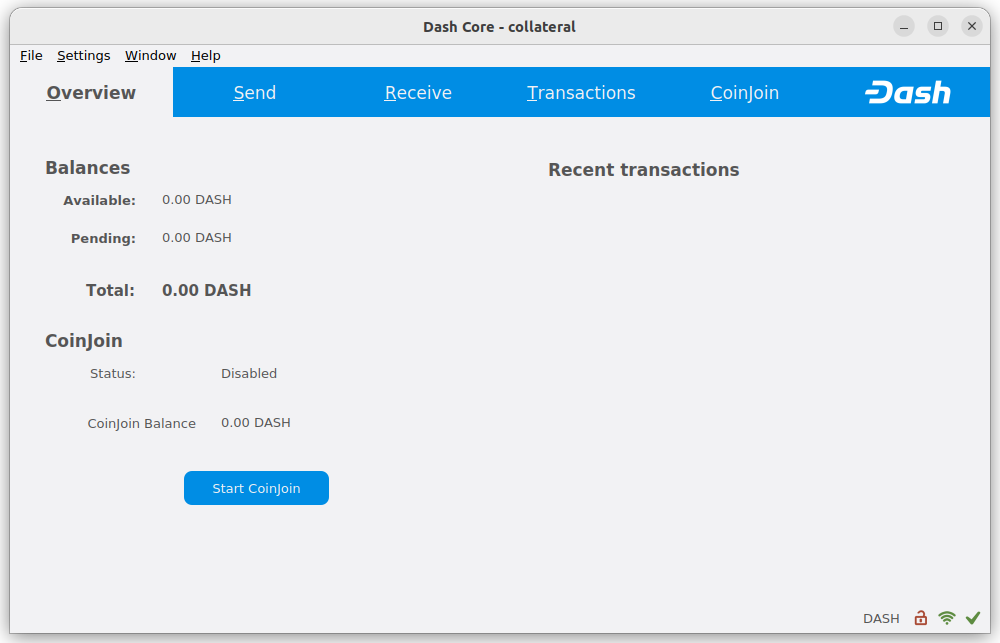
Ví Dash Core đã được đồng bộ xong#
Click Window > Console to open the console. Type the following command into the console to generate a new Dash address for the collateral:
getnewaddress
yiFfzbwiN9oneftd7cEfr3kQLRwQ4kp7ue
Take note of the collateral address, since we will need it later. The next step is to secure your wallet (if you have not already done so). First, encrypt the wallet by selecting Settings > Encrypt wallet. You should use a strong, new password that you have never used somewhere else. Take note of your password and store it somewhere safe or you will be permanently locked out of your wallet and lose access to your funds. Next, back up your wallet file by selecting File > Backup Wallet. Save the file to a secure location physically separate to your computer, since this will be the only way you can access our funds if anything happens to your computer. For more details on these steps, see here.
Now send exactly 1000 DASH in a single transaction to the new address you generated in the previous step. This may be sent from another wallet, or from funds already held in your current wallet. Once the transaction is complete, view the transaction in a blockchain explorer by searching for the address. You will need 15 confirmations before you can register the masternode, but you can continue with the next step at this point already: generating your masternode operator key.
Trình khám phá blockchain hiển thị 15 xác thực cho giao dịch đặt cọc#
Masternode Installation#
The following tools are available for installing a Dash masternode:
Dash Masternode Zeus (does not yet support evonodes)
dashmate installation#
Dashmate is a universal tool designed to help you set up and run Dash nodes in a containerized environment. It is based on Docker technology and features an interactive setup command. Dashmate handles the installation of Dash Core, as well as all dependencies and supporting services. See this dashmate documentation for more information.
Cảnh báo
Installation as root user is not supported or recommended.
Open PuTTY or a console again and connect using the username and password you just created for your new, non-root user. Begin by installing dashmate dependencies:
curl -fsSL https://get.docker.com -o get-docker.sh && sh ./get-docker.sh
sudo usermod -aG docker $USER
newgrp docker
curl -o- https://raw.githubusercontent.com/nvm-sh/nvm/v0.39.1/install.sh | bash
source ~/.bashrc
nvm install 16
Install dashmate:
npm install -g dashmate
Run the interactive setup wizard:
dashmate setup
You will be prompted to select a network, node type, IP address and BLS private key. Enter this information or accept the detected/generated defaults. Start your node as follows:
dashmate start
You can manage your masternode status, configuration, and running state entirely from within dashmate. See the documentation here or use the built-in help system to learn more:
dashmate --helpdashmate <command> --help
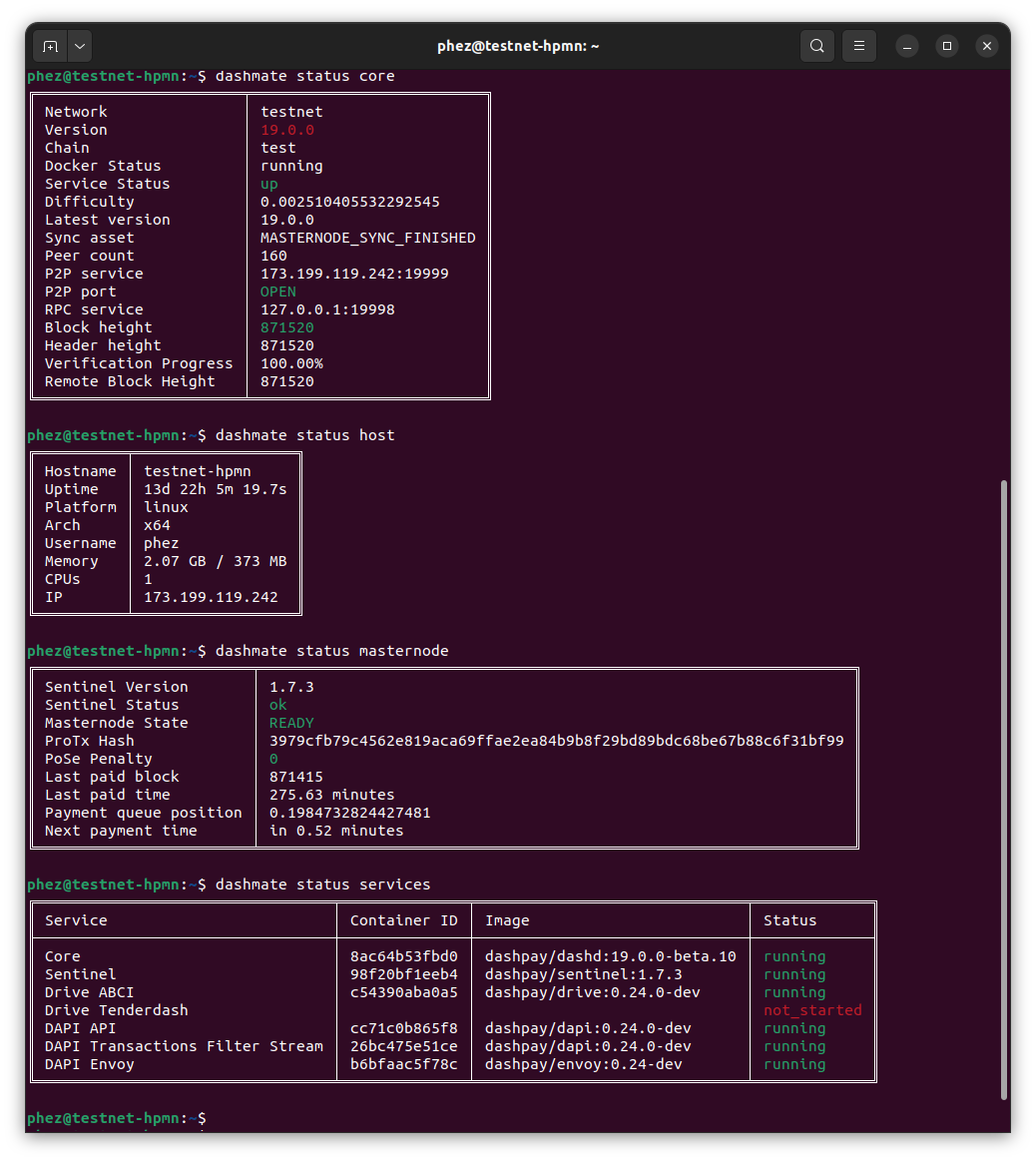
dashmate displaying a range of status output#
You can check the status of your masternode using the various dashmate
status commands as follows:
- dashmate status
- dashmate status core
- dashmate status host
- dashmate status masternode
- dashmate status platform
- dashmate status services
Continue with the Registration step to setup the collateral, keys and construct the ProTx transaction required to enable your masternode.
Masternode Update#
You can use dashmate to update minor versions of the software on
your masternode as follows:
dashmate stop
dashmate update
dashmate start
Adding the following git and npm commands optionally also
ensures you are using the latest stable version of dashmate:
dashmate stop
npm update -g dashmate
dashmate update
dashmate start
Adding the following command will drop all data from Dash Platform (necessary if Platform has been wiped) and restart with the latest version:
dashmate stop
npm update -g dashmate
dashmate reset --platform-only
dashmate update
dashmate start
Masternode registration#
The three keys required for the different masternode roles are described briefly under Masternode Concepts in this documentation.
Tuỳ chọn 1: Đăng ký từ một ví phần cứng#
Go back to DMT and ensure that all fields from the previous step are still filled out correctly. Click Generate new for the three private keys required for a masternode:
Khoá riêng của chủ sở hữu
Operator private key (generate new or use private key generated by dashmate)
Khoá riêng bỏ phiếu
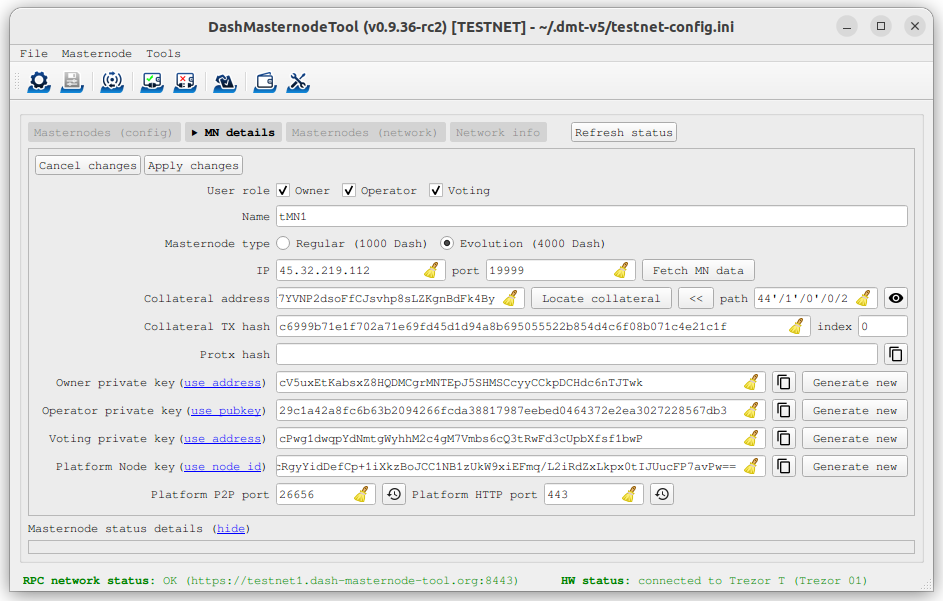
Dash Masternode Tool sẵn sàng cho việc đăng ký một masternode mới#
Then click Register masternode. Optionally specify a different Payout address and/or Operator reward, then click Continue. Select Remote Dash RPC Node (automatic method). (See here for documentation on using your own local RPC node.) and confirm the following two messages:

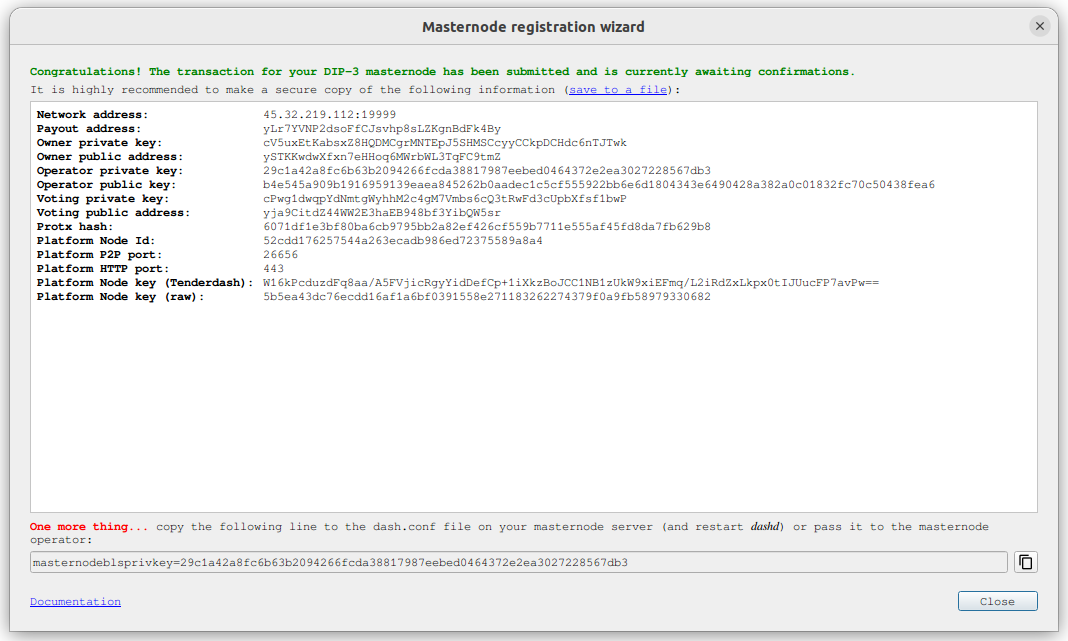
Các bảng hội thoại của Dash Masternode Tool xác nhận việc đăng ký một masternode#
The public key will be used in following steps. The private key must be
entered in the configuration on the masternode. This allows the
masternode to watch the blockchain for relevant Pro*Tx transactions, and
will cause it to start serving as a masternode when the signed ProRegTx
is broadcast by the owner (final step below). If you are using the BLS
key generated by dashmate setup, this information is already configured
for your masternode. If you generated your own BLS key pair, edit the
dashmate configuration as follows:
dashmate config set core.masternode.operator.privateKey <bls_private_key>
dashmate restart
At this point you can go back to your terminal window and monitor your
masternode by entering dashmate status or using the Get status
function in DMT.
You can now safely log out of your server by typing exit.
Congratulations! Your masternode is now running.
Tuỳ chọn 2: Đăng ký từ ví Dash Core#
Xác định giao dịch cấp vốn#
If you used an address in Dash Core wallet for your collateral transaction, you now need to find the txid of the transaction. Click Window > Console and enter the following command:
masternode outputs
Điều này sẽ trả về một chuỗi các ký tự tương tự như sau
{
"16347a28f4e5edf39f4dceac60e2327931a25fdee1fb4b94b63eeacf0d5879e3-1",
}
Dòng dài đầu tiên là collateralHash của bạn, còn số cuối cùng là collateralIndex.
Sinh một cặp khoá BLS#
A public/private BLS key pair is required to operate a masternode. The private key is specified on the masternode itself, and allows it to be included in the deterministic masternode list once a provider registration transaction with the corresponding public key has been created.
If you are using a hosting service, they may provide you with their
public key, and you can skip this step. If you are hosting your own
masternode or have agreed to provide your host with the BLS private key,
you can use the BLS key generated by the dashmate setup command.
Alternatively, you can generate a BLS public/private keypair in Dash
Core by clicking Window > Console and entering the following
command:
bls generate

{
  "secret": "395555d67d884364f9e37e7e1b29536519b74af2e5ff7b62122e62c2fffab35e",
  "public": "99f20ed1538e28259ff80044982372519a2e6e4cdedb01c96f8f22e755b2b3124fbeebdf6de3587189cf44b3c6e7670e",
  "scheme": "legacy"
}
These keys are NOT stored by the wallet or dashmate and must be kept
secure, similar to the value provided in the past by the masternode
genkey command.
Thêm khoá riêng vào cấu hình masternode của bạn#
The public key will be used in following steps. The private key must be
entered in the dash.conf file on the masternode. This allows the
masternode to watch the blockchain for relevant Pro*Tx transactions, and
will cause it to start serving as a masternode when the signed ProRegTx
is broadcast by the owner (final step below). If you are using the BLS
key generated by dashmate setup, this information is already
configured for your masternode. If you generated your own BLS key pair,
edit the dashmate configuration as follows:
dashmate config set core.masternode.operator.privateKey <bls_private_key>
dashmate restart
Chúng ta sẽ chuẩn bị giao dịch được dùng để đăng ký masternode lên mạng.
Chuẩn bị cho một giao dịch ProRegTx#
A pair of BLS keys for the operator were already generated above, and
the private key was entered on the masternode. The public key is used in
this transaction as the operatorPubKey.
First, we need to get a new, unused address from the wallet to serve as
the owner key address (ownerKeyAddr). This is not the same as
the collateral address holding 1000 Dash. Generate a new address as
follows:
getnewaddress

yfgxFhqrdDG15ZWKJAN6dQvn6dZdgBPAip
This address can also be used as the voting key address
(votingKeyAddr). Alternatively, you can specify an address provided
to you by your chosen voting delegate, or simply generate a new voting
key address as follows:
getnewaddress

yfRaZN8c3Erpqj9iKnmQ9QDBeUuRhWV3Mg
Then either generate or choose an existing address to receive the
owner's masternode payouts (payoutAddress). It is also possible
to use an address external to the wallet:
getnewaddress

yjZVt49WsQd6XSrPVAUGXtJccxviH9ZQpN
You can also optionally generate and fund another address as the
transaction fee source (feeSourceAddress). If you selected an
external payout address, you must specify a fee source address.
Either the payout address or fee source address must have enough balance
to pay the transaction fee, or the register_prepare transaction will
fail.
The private keys to the owner and fee source addresses must exist in the wallet submitting the transaction to the network. If your wallet is protected by a password, it must now be unlocked to perform the following commands. Unlock your wallet for 5 minutes:
walletpassphrase yourSecretPassword 300
We will now prepare an unsigned ProRegTx special transaction using the
protx register_prepare command. This command has the following
syntax:
protx register_prepare collateralHash collateralIndex ipAndPort ownerKeyAddr
  operatorPubKey votingKeyAddr operatorReward payoutAddress (feeSourceAddress)
Cảnh báo
After v19 hard fork activation, protx register_prepare_legacy must
be used if a legacy scheme BLS key is being used to register a masternode.
It's recommended to instead generate a new basic scheme BLS key where
possible. This can be done by following the
Generate a BLS key pair instructions.
Open a text editor such as notepad to prepare this command. Replace each argument to the command as follows:
collateralHash: Mã txid của giao dịch đặt cọc 1000 DashcollateralIndex: Chỉ số đầu ra của giao dịch cấp vốn 1000 DashipAndPort: Địa chỉ IP và cổng của masternode, theo định dạngx.x.x.x:yyyyownerKeyAddr: Địa chỉ Dash mới được sinh ở trên cho địa chỉ sở hữu/bỏ phiếuoperatorPubKey: Khoá công khai BLS được sinh ở trên (hoặc được cung cấp bởi nhà cung cấp dịch vụ lưu trữ)votingKeyAddr: Địa chỉ Dash mới được sinh ở trên, hoặc địa chỉ uỷ nhiệm cho việc bỏ phiếu các đề xuấtoperatorReward: Phần trăm phần thưởng khối sẽ được trả cho người vận hànhpayoutAddress: Một địa chỉ mới hoặc cũ để nhận phần thưởng khối cho người chủ sở hữufeeSourceAddress: Một địa chỉ (tuỳ chọn) dùng để cấp vốn cho khoản phí ProTx. NếufeeSourceAddresskhông được cung cấp nó sẽ lấy tiền phí từ địa chỉpayoutAddress.
Note that the operator is responsible for specifying their own
reward address in a separate update_service
transaction if you specify a non-zero operatorReward. The owner of
the masternode collateral does not specify the operator's payout
address.
Ví dụ (hãy xoá các xuống dòng nếu copy):
protx register_prepare
  16347a28f4e5edf39f4dceac60e2327931a25fdee1fb4b94b63eeacf0d5879e3
  1
  45.76.230.239:19999
  yfgxFhqrdDG15ZWKJAN6dQvn6dZdgBPAip
  99f20ed1538e28259ff80044982372519a2e6e4cdedb01c96f8f22e755b2b3124fbeebdf6de3587189cf44b3c6e7670e
  yfRaZN8c3Erpqj9iKnmQ9QDBeUuRhWV3Mg
  0
  yjZVt49WsQd6XSrPVAUGXtJccxviH9ZQpN
  yR83WsikBaBaNusTnHZf28kAcL8oVmp1TE
Đầu ra:
{
  "tx": "030001000175c9d23c2710798ef0788e6a4d609460586a20e91a15f2097f56fc6e007c4f8e0000000000feffffff01a1949800000000001976a91434b09363474b14d02739a327fe76e6ea12deecad88ac00000000d1010000000000e379580dcfea3eb6944bfbe1de5fa2317932e260acce4d9ff3ede5f4287a34160100000000000000000000000000ffff2d4ce6ef4e1fd47babdb9092489c82426623299dde76b9c72d9799f20ed1538e28259ff80044982372519a2e6e4cdedb01c96f8f22e755b2b3124fbeebdf6de3587189cf44b3c6e7670ed1935246865dce1accce6c8691c8466bd67ebf1200001976a914fef33f56f709ba6b08d073932f925afedaa3700488acfdb281e134504145b5f8c7bd7b47fd241f3b7ea1f97ebf382249f601a0187f5300",
  "collateralAddress": "yjSPYvgUiAQ9AFj5tKFA8thFLoLBUxQERb",
  "signMessage": "yjZVt49WsQd6XSrPVAUGXtJccxviH9ZQpN|0|yfgxFhqrdDG15ZWKJAN6dQvn6dZdgBPAip|yfRaZN8c3Erpqj9iKnmQ9QDBeUuRhWV3Mg|ad5f82257bd00a5a1cb5da1a44a6eb8899cf096d3748d68b8ea6d6b10046a28e"
}
Next we will use the collateralAddress and signMessage fields to
sign the transaction, and the output of the tx field to submit the
transaction.
Ký cho giao dịch ProRegTx#
We will now sign the content of the signMessage field using the
private key for the collateral address as specified in
collateralAddress. Note that no internet connection is required for
this step, meaning that the wallet can remain disconnected from the
internet in cold storage to sign the message. In this example we will
again use Dash Core, but it is equally possible to use the signing
function of a hardware wallet. The command takes the following syntax:
signmessage collateralAddress signMessage
Ví dụ:
signmessage yjSPYvgUiAQ9AFj5tKFA8thFLoLBUxQERb yjZVt49WsQd6XSrPVAUGXtJccxviH9ZQpN|0|yfgxFhqrdDG15ZWKJAN6dQvn6dZdgBPAip|yfRaZN8c3Erpqj9iKnmQ9QDBeUuRhWV3Mg|ad5f82257bd00a5a1cb5da1a44a6eb8899cf096d3748d68b8ea6d6b10046a28e
Đầu ra:
II8JvEBMj6I3Ws8wqxh0bXVds6Ny+7h5HAQhqmd5r/0lWBCpsxMJHJT3KBcZ23oUZtsa6gjgISf+a8GzJg1BfEg=
Gửi thông điệp đã được ký#
We will now submit the ProRegTx special transaction to the blockchain to
register the masternode. This command must be sent from a Dash Core
wallet holding a balance on either the feeSourceAddress or
payoutAddress, since a standard transaction fee is involved. The
command takes the following syntax:
protx register_submit tx sig
Ở đó:
tx: Kết quả trường đầu ratxđược trả về từ câu lệnhprotx register_preparesig: Là thông điệp được ký với khoá đặt cọc từ câu lệnhsignmessage
Ví dụ:
protx register_submit 030001000175c9d23c2710798ef0788e6a4d609460586a20e91a15f2097f56fc6e007c4f8e0000000000feffffff01a1949800000000001976a91434b09363474b14d02739a327fe76e6ea12deecad88ac00000000d1010000000000e379580dcfea3eb6944bfbe1de5fa2317932e260acce4d9ff3ede5f4287a34160100000000000000000000000000ffff2d4ce6ef4e1fd47babdb9092489c82426623299dde76b9c72d9799f20ed1538e28259ff80044982372519a2e6e4cdedb01c96f8f22e755b2b3124fbeebdf6de3587189cf44b3c6e7670ed1935246865dce1accce6c8691c8466bd67ebf1200001976a914fef33f56f709ba6b08d073932f925afedaa3700488acfdb281e134504145b5f8c7bd7b47fd241f3b7ea1f97ebf382249f601a0187f5300 II8JvEBMj6I3Ws8wqxh0bXVds6Ny+7h5HAQhqmd5r/0lWBCpsxMJHJT3KBcZ23oUZtsa6gjgISf+a8GzJg1BfEg=
Đầu ra:
aba8c22f8992d78fd4ff0c94cb19a5c30e62e7587ee43d5285296a4e6e5af062
Your masternode is now registered and will appear on the Deterministic
Masternode List after the transaction is mined to a block. You can view
this list on the Masternodes -> DIP3 Masternodes tab of the Dash
Core wallet, or in the console using the command protx list valid,
where the txid of the final protx register_submit transaction
identifies your masternode.
At this point you can go back to your terminal window and monitor your
masternode by entering dashmate status or using the Get status
function in DMT.