Linux Installation Guide
This guide describes how to download, verify, install and encrypt the Dash Core wallet for Linux. The guide is written for Ubuntu 16.04 LTS, but the steps should be similar for other Linux distributions.
Процедура скачивания кошелька Dash Core
Visit https://www.dash.org/get-dash/ to download the latest Dash Core wallet. In most cases, the website will properly detect which version you need. Click the blue Dash Core button to download the package directly.

Сайт автоматически определит кошелёк, подходящий для вашей системы
If detection does not work, you will need to manually choose your operating system and whether you need a 32 or 64 bit version. If you are unsure whether your version of Linux is 32 or 64 bit, you can check in Ubuntu under the System menu > About This Computer. For details on how to check this in other versions of Linux, see here.
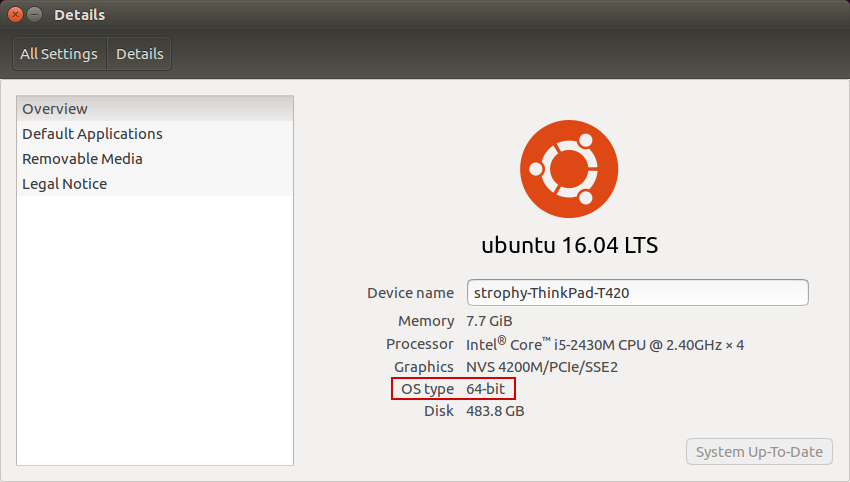
Ubuntu System Overview. This is a 64 bit system.
Once you know which version you need, download Dash Core to your computer from https://www.dash.org/wallets.

Manually selecting and downloading Dash Core
Сохрание скачиваемый файл в папку Загрузки
Проверка Dash Core
Этот шаг не является обязательным, но провести проверку целостности скачанного файла рекомендуется. Это делается проверкой SHA 256 хэша этого файла с хэшем, опубликованным командой разработчиков Dash Core. Чтобы увидеть опубликованный хэш, нажмите кнопку Hash file на странице скачивания кошелька.
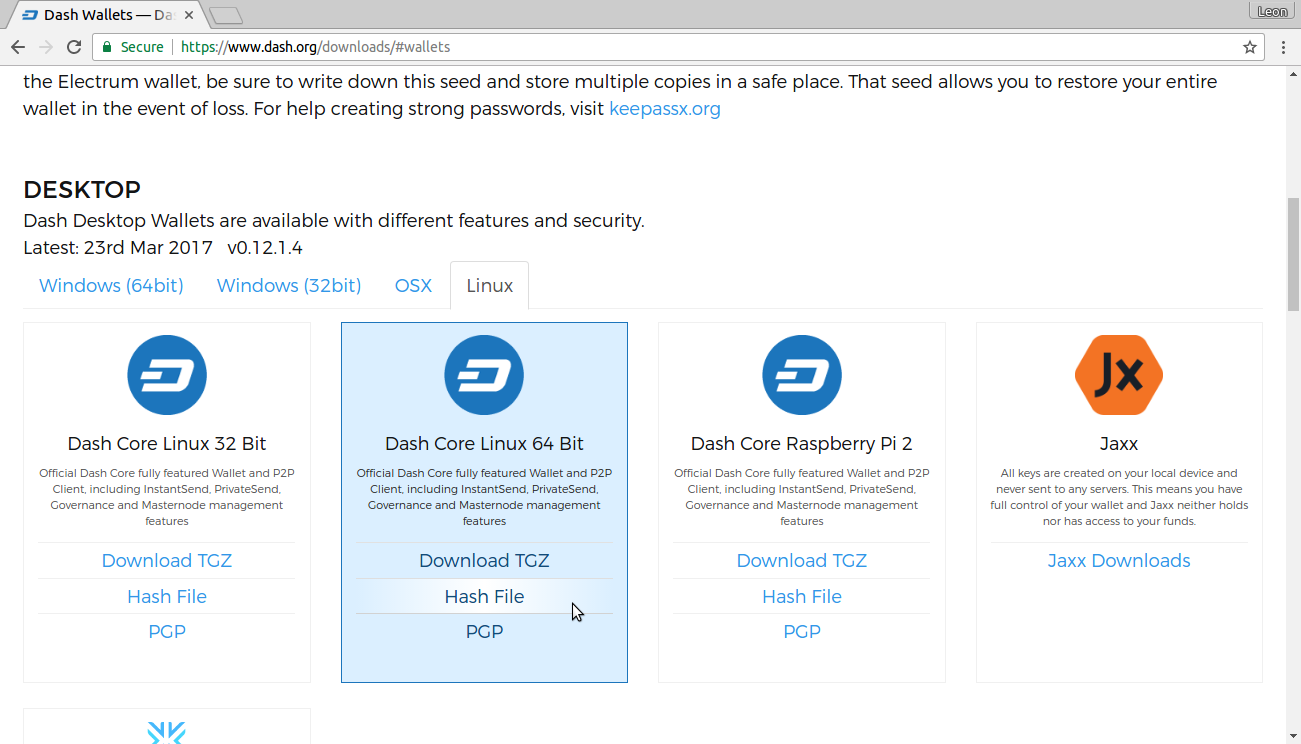
Скачивание хэш файла Dash Core
Once both the Dash Core file and the hash file have downloaded, double-click the hash file or view it in your browser and find the hash value for the Dash Core file you downloaded.
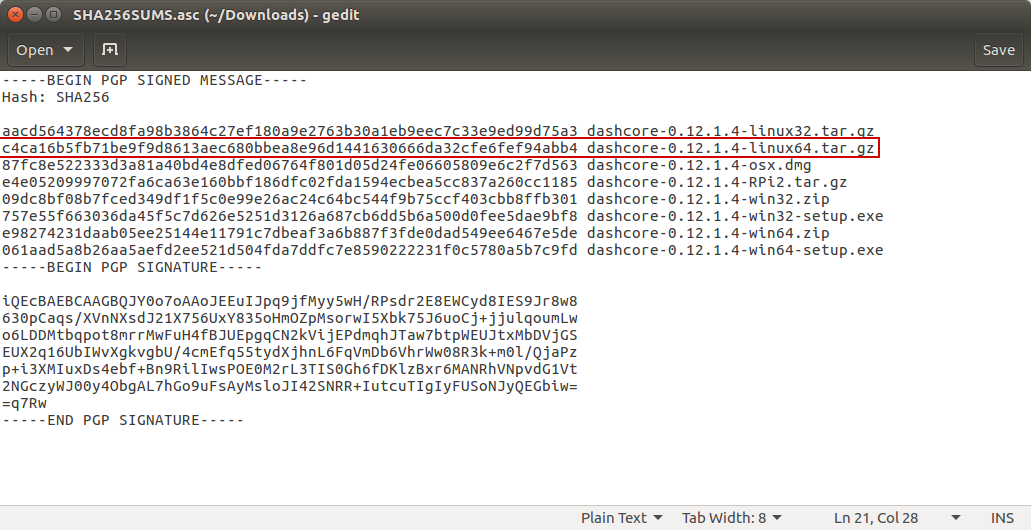
Просмотр хэш файла кошелька Dash Core
This hash value should correspond with the hash value of the file you have downloaded to ensure it is authentic and was not corrupted during transit. To do this, open Terminal, browse to the location where you saved the file, and run the sha256sum command.

Создание SHA256 хэша для скачанного файла
If the hashes match, then you have an authentic copy of Dash Core for Linux.
Extracting Dash Core
Dash Core for Linux is distributed as a compressed archive and not an installer. This is because this same archive also contains other files built for running a masternode on a server, for example. In this guide, we will extract the executable file with a graphical user interface (GUI) designed for use by end users as a wallet.
Begin by creating a folder for the Dash Core executable file on the Desktop. Browse to the Desktop (or the location of your choice) and create the folder.
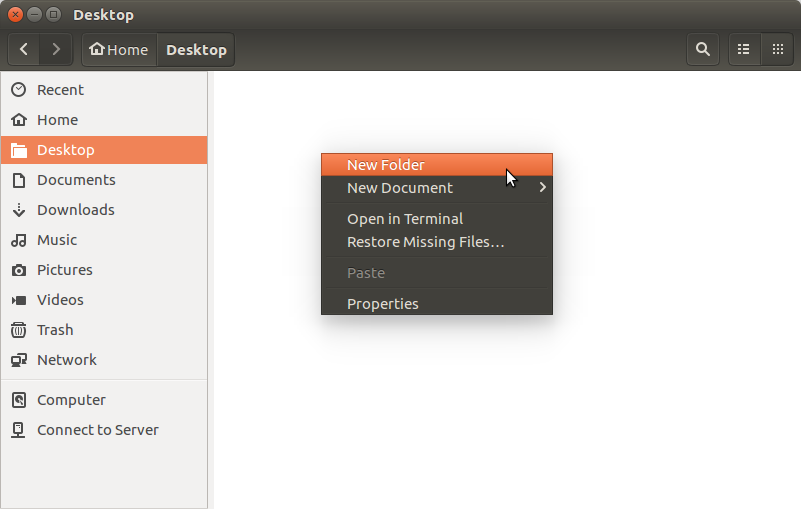
Creating a folder on the Desktop
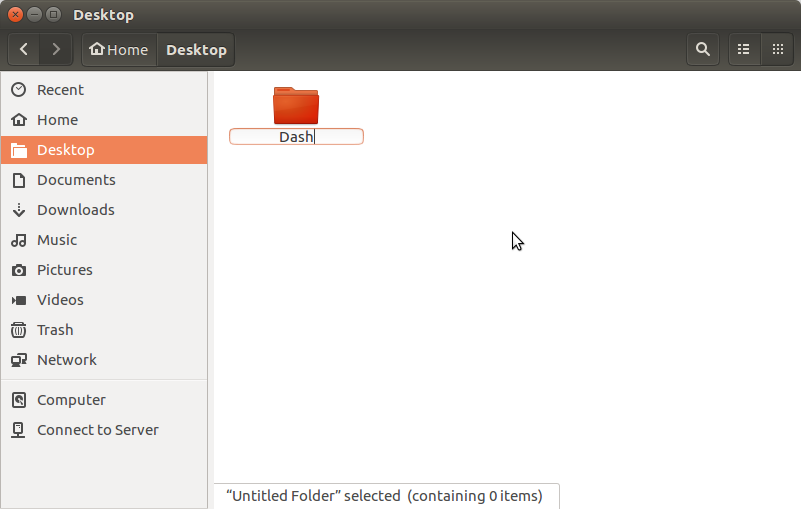
Renaming the folder to Dash
Next, open the archive by double-clicking on it. The Archive Manager will appear. Browse to the dashcore-0.12.1/bin/ folder and extract the dash-qt file to the Dash folder you created on the Desktop by drag and drop.
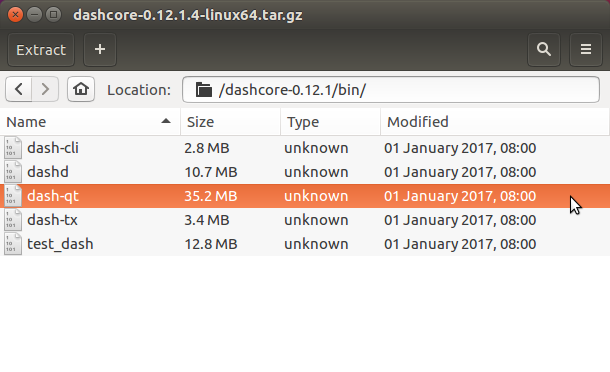
The dash-qt file in Archive Manager
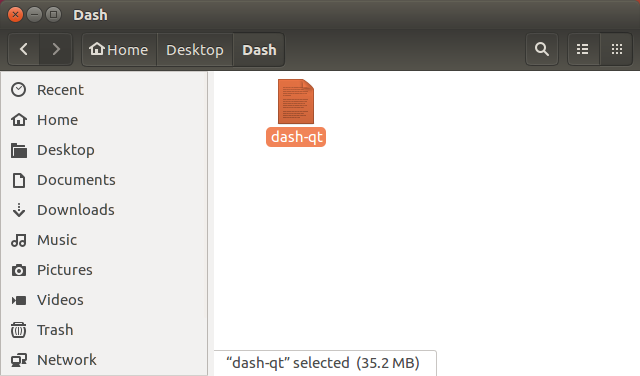
The dash-qt file in the Dash folder on the Desktop
To run Dash Core for the first time, open Terminal and browse to the
Dash folder on the Desktop, or where you chose to extract the file. Type
./dash-qt to run the file.
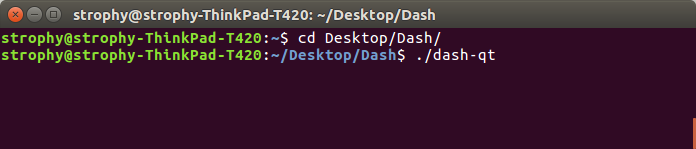
Running Dash Core from the Terminal
The first time the program is launched, you will be offered a choice of where you want to store your blockchain and wallet data. Choose a location with enough free space, as the blockchain can reach around 3-4GB in size. It is recommended to use the default data folder if possible.
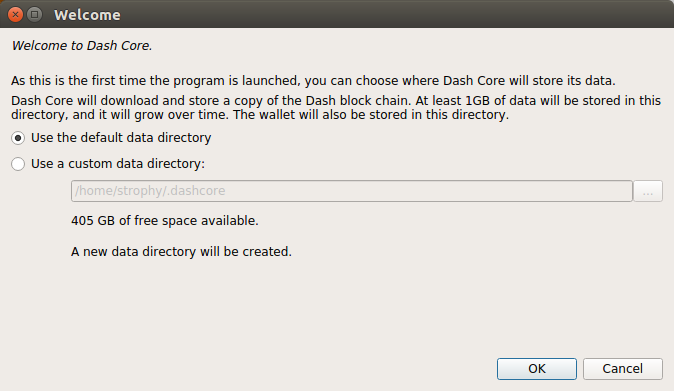
Выбор места хранения данных кошелька Dash Core
Произойдёт запуск кошелька Dash Core. Первый запуск проходит дольше обычного, поскольку кошельку Dash Core необходимо создать криптографические данные для защиты вашего кошелька.
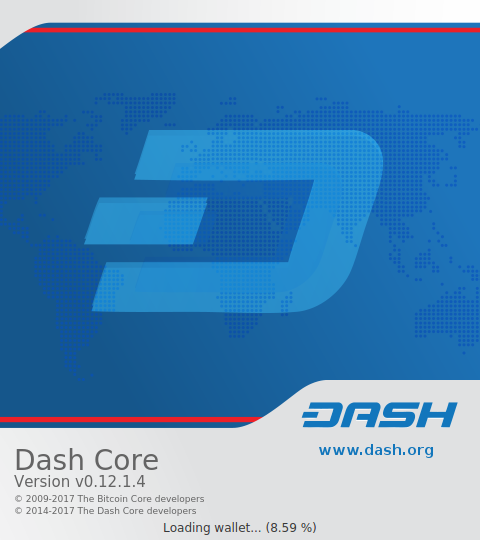
Запуск кошелька Dash Core
Синхронизация кошелька Dash Core с сетью Dash
Как только кошелёк Dash Core будет успешно установлен и запущен, вы увидете экран обзора кошелька. В увидете что кошелёк «не синхронизирован» и полосу прогресса статуса синхронизации в нижней части экрана.
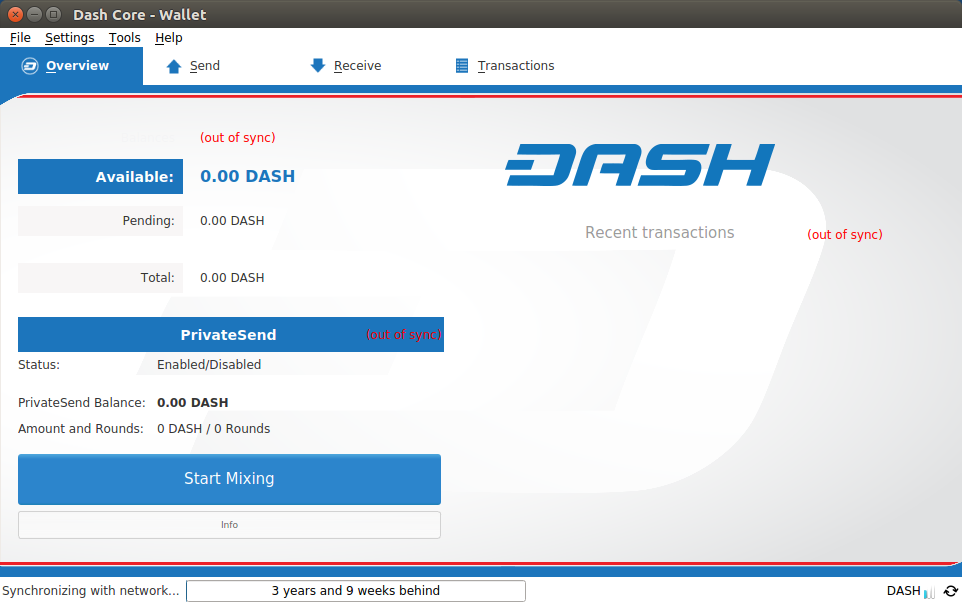
Кошелёк Dash Core начнёт синхронизацию с сетью Dash
Во время этого процесса, кошелёк Dash Core скачает с узлов сети (нод) полную копию блокчейна Dash на ваше устройство. В зависимости от интернет-соединения, это может занят как мало времени, так и много. Если вы увидете сообщение «Отсутствует источник блоков», проверьте ваше соединение с интернетом.
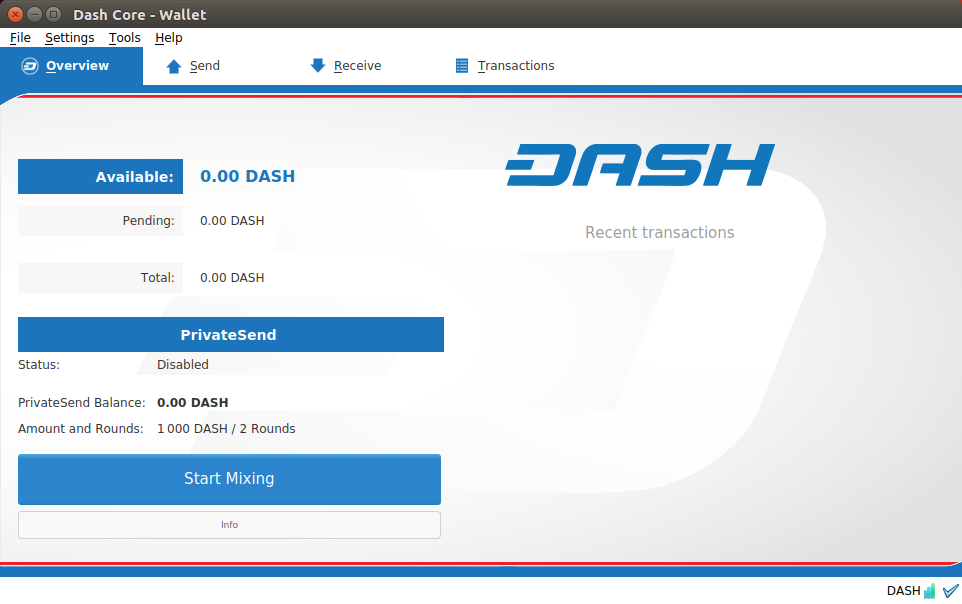
Синхронизация кошелька Dash Core завершена
Теперь вы можете начать использовать кошелёк для отправки или получения средств.
Ваш кошелёк Dash Core зашифровывается
Как только ваш кошелёк синхронизируется с сетью Dash, то для предотвращения несанкционированного доступа к нему, настойчиво рекомендуем вам зашифровать кошелёк с помощью пароля или кодовой фразы. Необходимо использовать надежный, новый пароль, который вы не использовали ранее нигде. Запишите свой пароль и храните его в безопасном месте, иначе вы можете потерять доступ к кошельку и вашим средствам.
To encrypt your wallet, click Settings > Encrypt wallet.
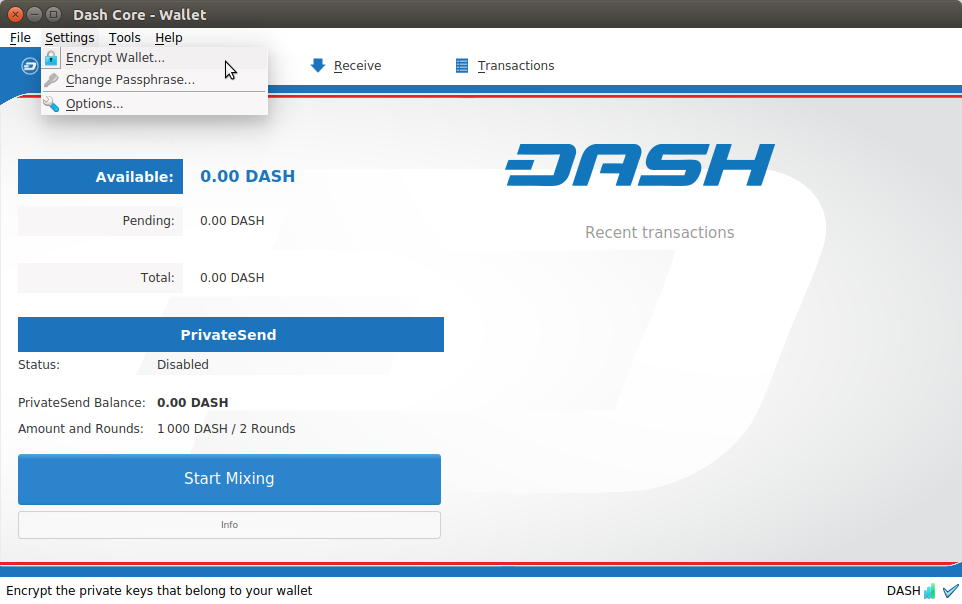
Кошелёк Dash шифруется паролем
Вам поступит запрос ввести и подтвердить пароль.
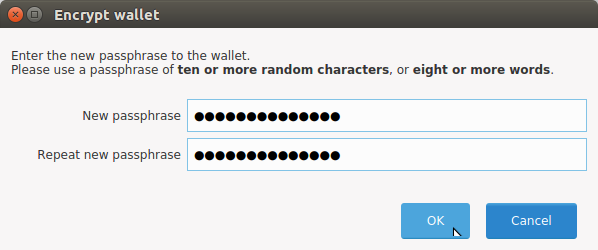
Entering a password
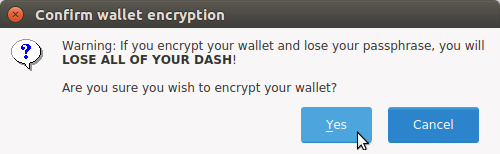
Подтвердите, что вы хотите зашифровать кошелёк
Когда процесс шифрования завершится, вы увидете предупреждение, что старые резервные копии вашего кошелька более не могут быть использованы, после чего вам будет предложено закрыть кошелёк Dash Core. Когда вы перезапустите кошелёк Dash Core, то увидете небольшой синий знак замка в нижней правой части экрана.
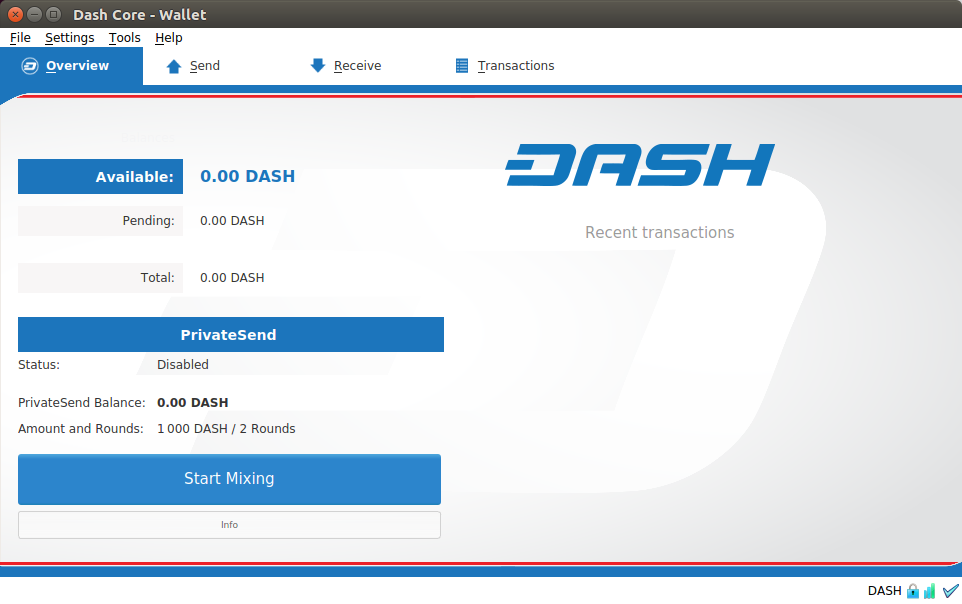
Кошелёк Dash Core полностью зашифрован и синхронизирован
Using the Ubuntu Repository to install Dash Core
Ubuntu allows you to add third-party repositories to install and update software using the apt command line utility. Dash Core team maintains such a repository, although the software version included here may be older than what is available on the website. To install Dash Core from the repository, open the Terminal and enter the following commands:
sudo add-apt-repository ppa:dash.org/dash
sudo apt update
sudo apt install dashd dash-qt